Link to this article: Print Oil Stickers
DRIVE SMS now supports printing customized oil stickers directly from your Repair Orders. This feature allows you to set maintenance presets and print stickers tailored to each vehicle's service needs.
1. Configure Your Settings
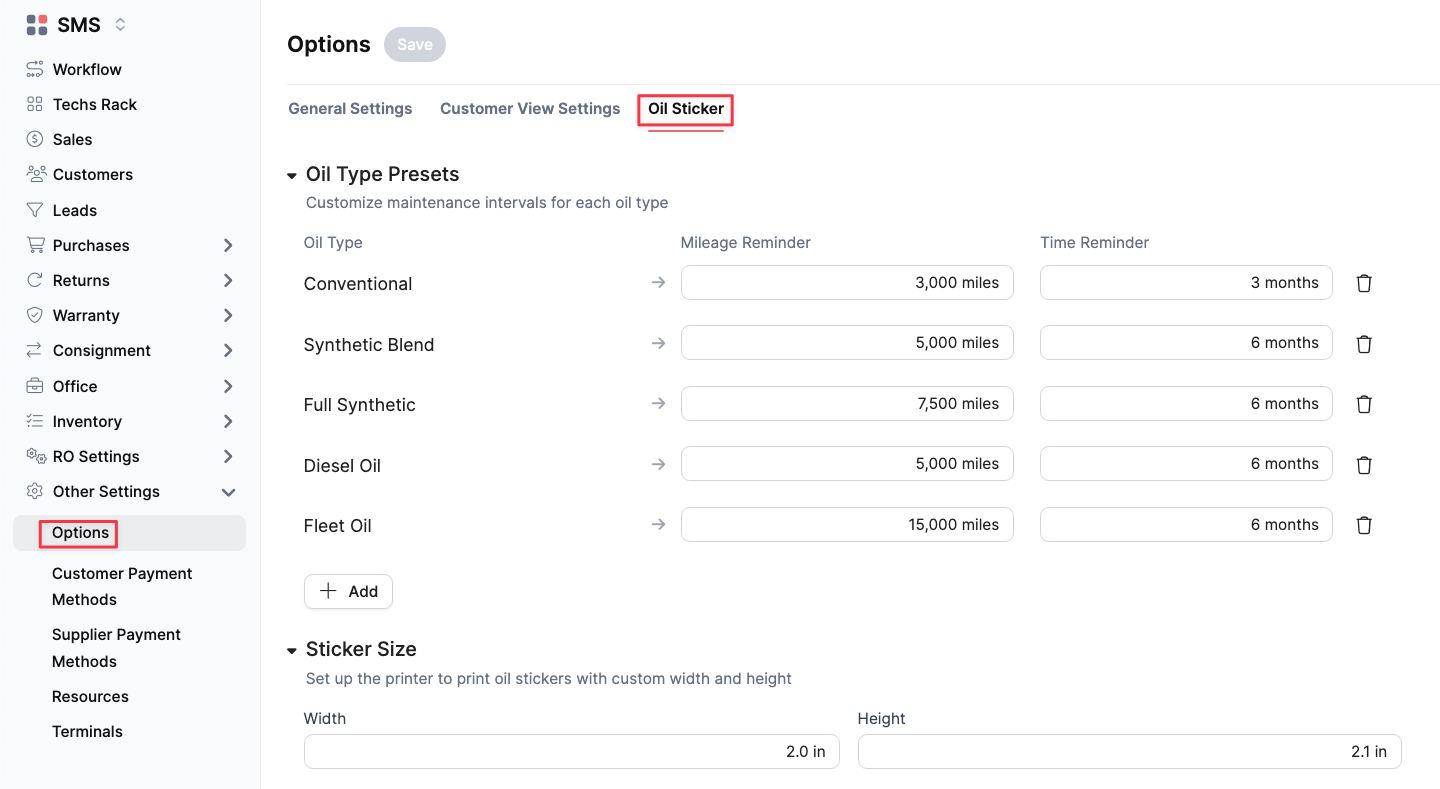
Before printing, set up your shop's standard maintenance intervals and sticker dimensions:
Navigate to Other Settings > Options and select the Oil Sticker tab.
Oil Type Presets: Define the mileage and time intervals for various service types (e.g., Conventional, Full Synthetic, or Diesel). You can also Add custom presets to this list.
Sticker Size: Set the custom Width and Height to match your specific printer and sticker stock.
2. Access the Print Menu

Once your settings are configured, you can generate a sticker from any active Repair Order:
Click the Print icon in the top menu bar of the RO.
Select Print Oil Sticker from the dropdown menu.
3. Customize the Sticker
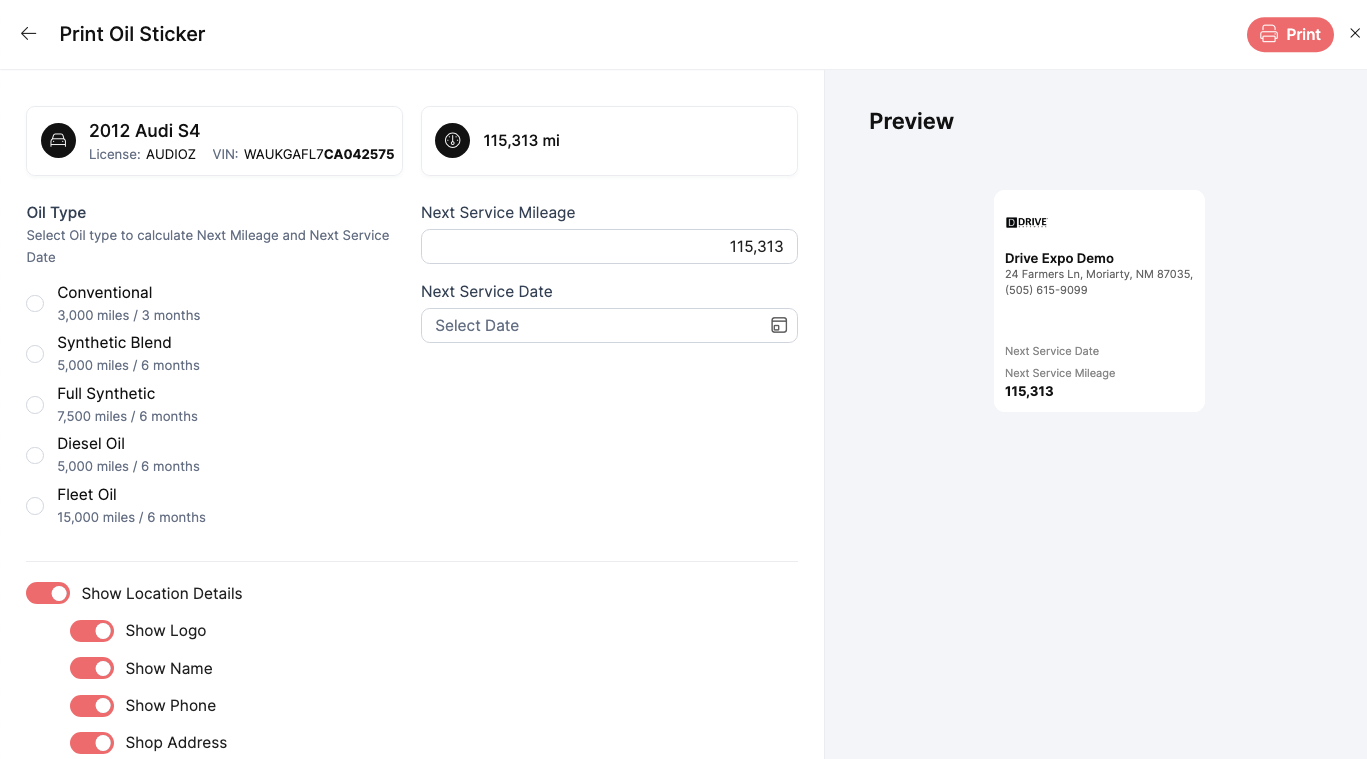
In the "Print Oil Sticker" window, you can finalize the details for the specific vehicle:
Select Oil Type: Choosing a preset will automatically calculate the Next Service Mileage and Next Service Date based on the vehicle's current odometer.
Manual Overrides: If needed, you can manually adjust the calculated mileage or date.
Display Toggles: Use the "Show Location Details" switches to include or hide your Shop Logo, Name, Phone, or Address on the final sticker.
4. Final Printing
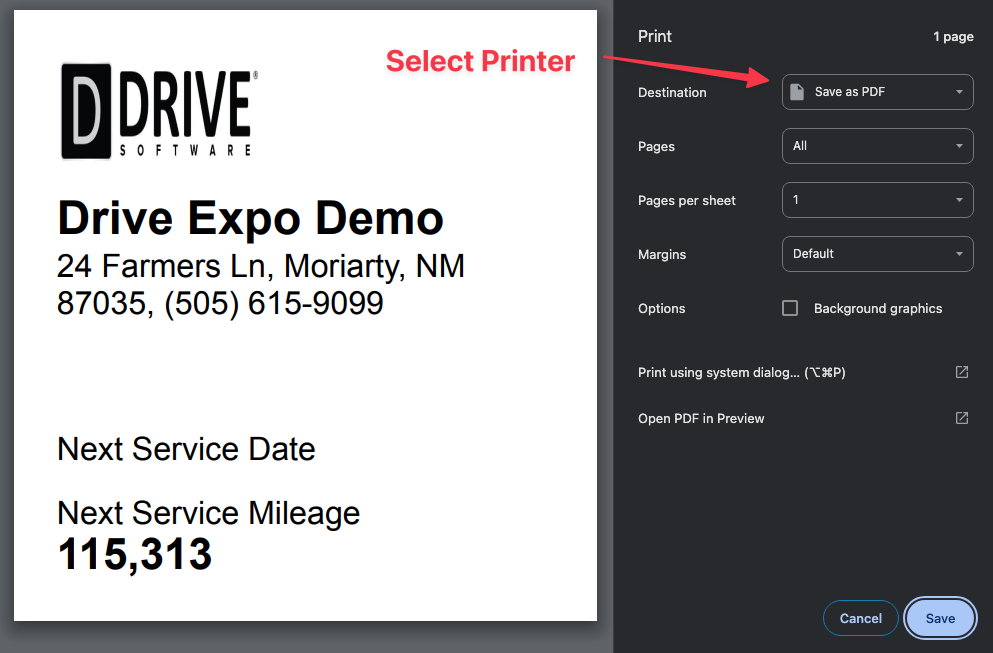
Review the Preview on the right side of the screen to ensure the layout is correct.
Click the red Print button in the top right corner.
Select your sticker printer from the system's Destination menu and click Save or Print.
Was this article helpful?
That’s Great!
Thank you for your feedback
Sorry! We couldn't be helpful
Thank you for your feedback
Feedback sent
We appreciate your effort and will try to fix the article