Link to this article: Adding Recommendations During Inspection Review
Service Advisors can now streamline the repair estimation process by adding recommendations directly while reviewing a Digital Vehicle Inspection. This feature ensures that every technician finding is immediately addressed and translated into a clear service suggestion for the customer.
1. Adding a Recommendation to an Inspection Point
While reviewing an inspection report, look for the Recommend column on the far right of each inspection point.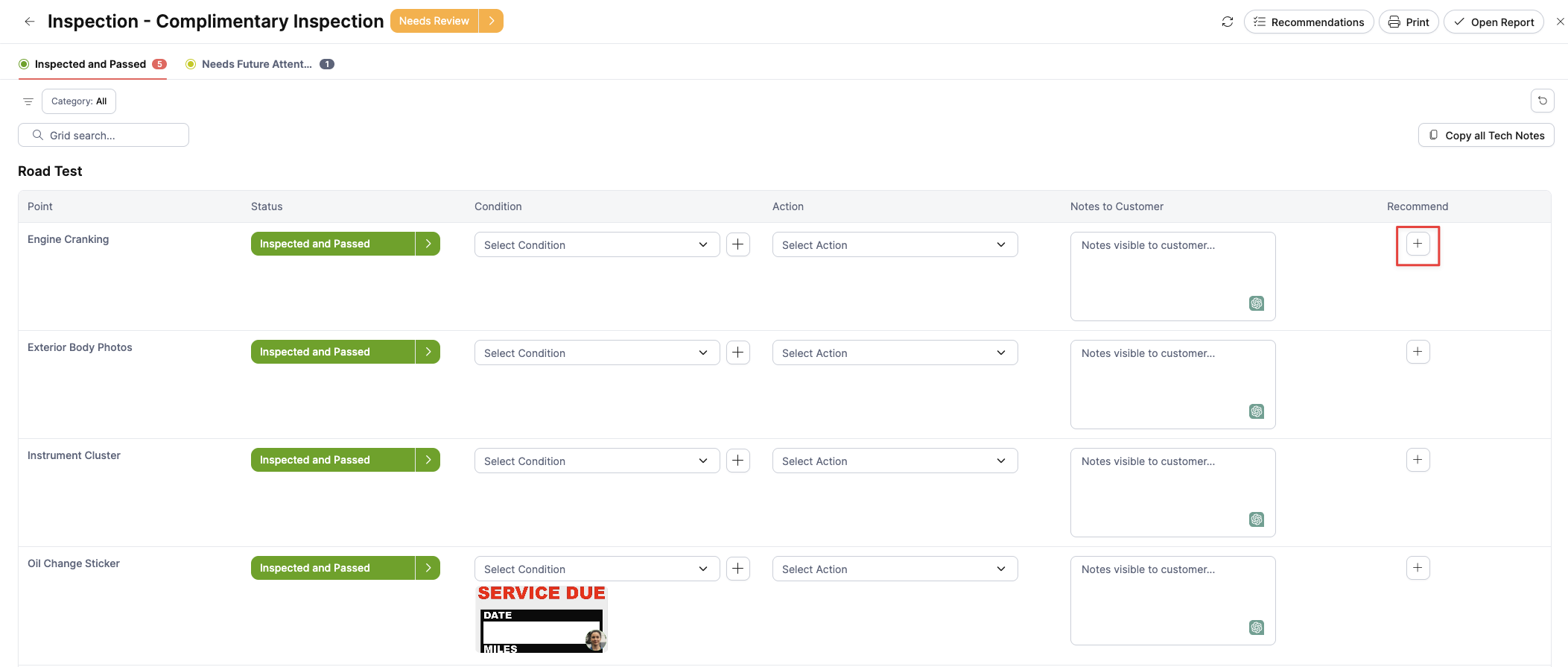
Click the Plus (+) Button: Select the "+" icon next to any inspection point that requires further service.
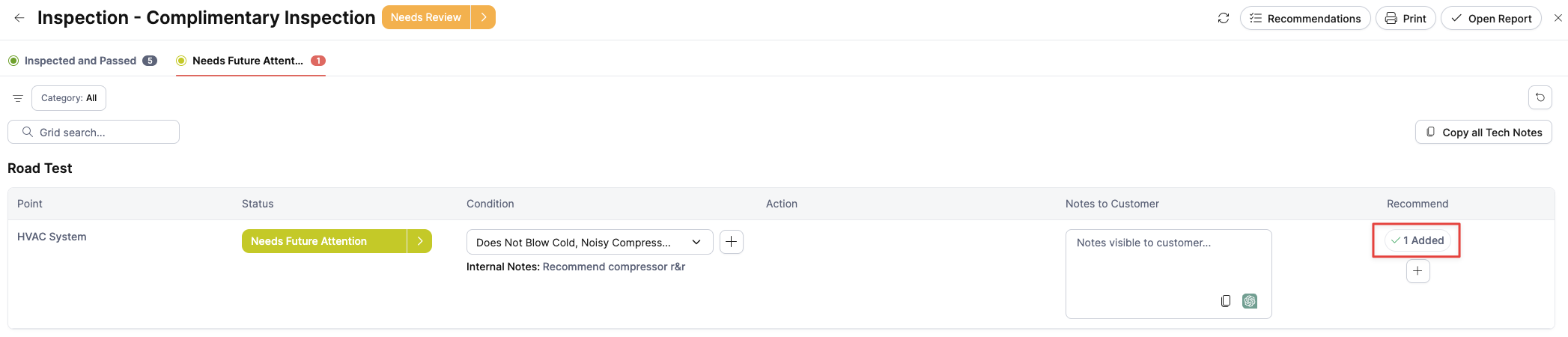
Acknowledge Added Services: Once a recommendation is successfully linked, the button will update to show the number of items added (e.g., "1 Added").
2. The "Recommend a Service" Screen
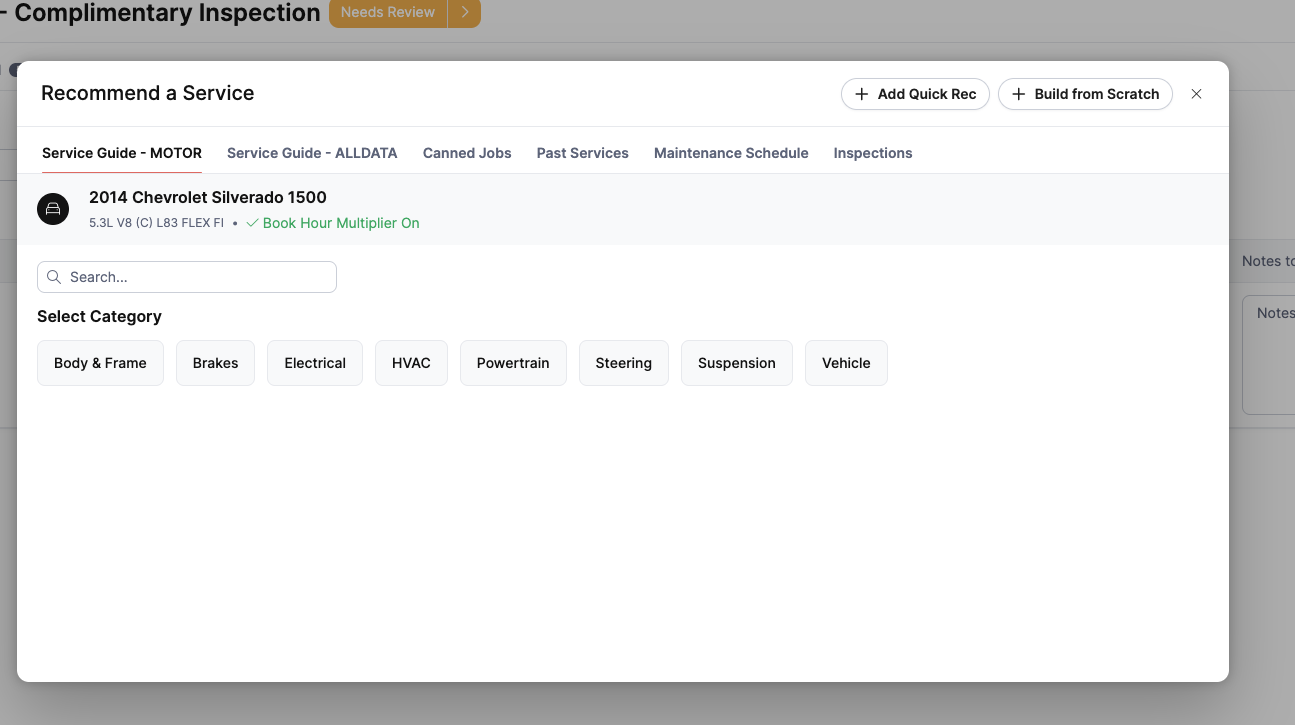
Clicking the add button opens the Recommend a Service window, providing several powerful ways to build your estimate.
3. Reviewing with Split-View
To ensure your recommendations accurately reflect the technician's findings, you can view them side-by-side with the inspection report.
Enable Split-View: Click the Recommendations button located at the top right of the inspection review header.

Side-by-Side Comparison: The screen will split to show the Inspection report on the left and your Current Recommendations on the right.
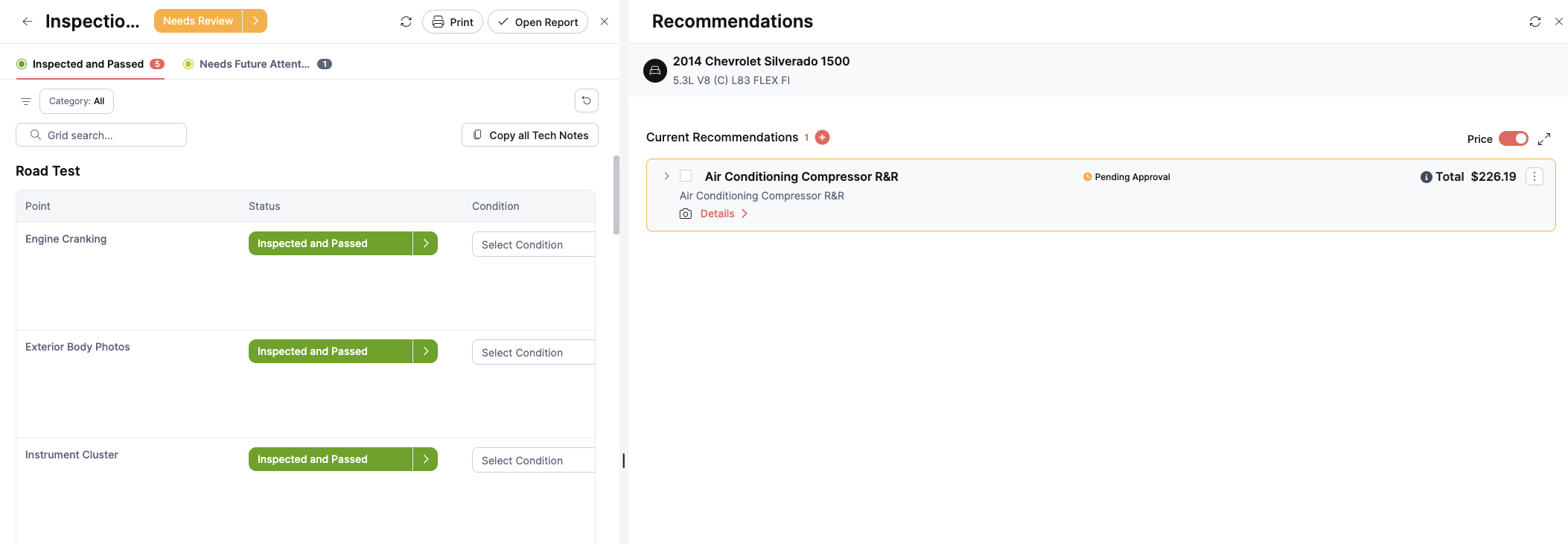
Details at a Glance: In this view, you can see the total price for each recommendation and verify their status (e.g., "Pending Approval") without leaving the inspection screen.
Customizing Recommendation Timing
You can control exactly when recommendations are generated for a vehicle based on your shop's specific workflow preferences. These settings are found under Other Settings > Options in the Repair Order tab.
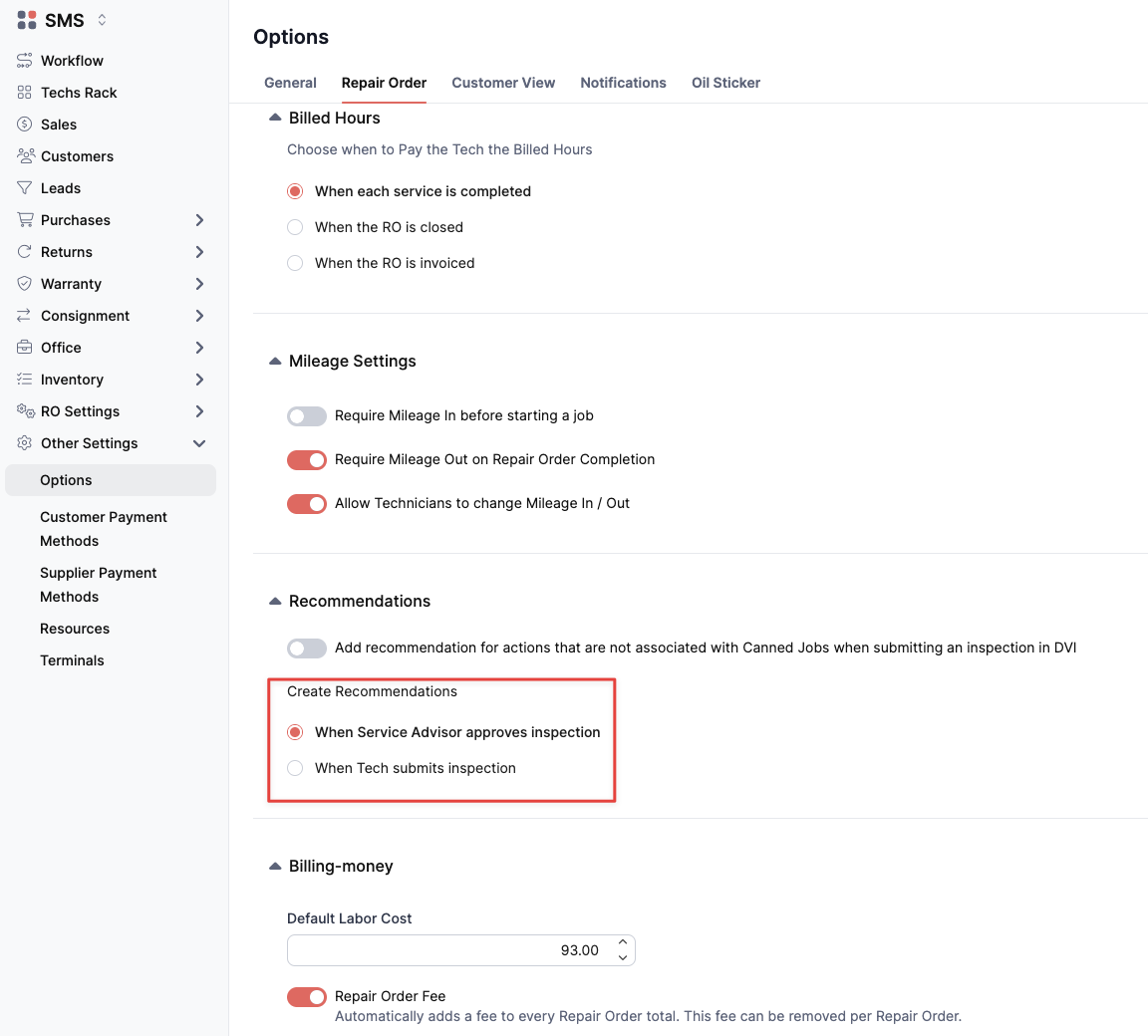
Under the Recommendations section, you can choose between two triggers for creating recommendations:
- When Service Advisor approves inspection (Default): Recommendations will only be added to the Recommendation screen once the Service Advisor has reviewed and officially approved the technician's findings. This allows for an extra layer of quality control before services are finalized.
- When Tech submits inspection: If you prefer a faster turnaround, selecting this option allows recommendations to be created automatically the moment the technician hits "submit" on their inspection in the DVI app.
By adjusting this setting, you can decide whether your Service Advisor should act as a "filter" or if the system should prioritize immediate estimate preparation.
This integrated workflow allows Service Advisors to build comprehensive, accurate estimates without navigating away from the technician's photos and notes, resulting in faster turnarounds and clearer communication with the customer.
Was this article helpful?
That’s Great!
Thank you for your feedback
Sorry! We couldn't be helpful
Thank you for your feedback
Feedback sent
We appreciate your effort and will try to fix the article